PDF to PNG Converter
Turn the pages of a PDF into PNG images. The pages are drawn in the tab in front of you, so nothing is uploaded.
Converter
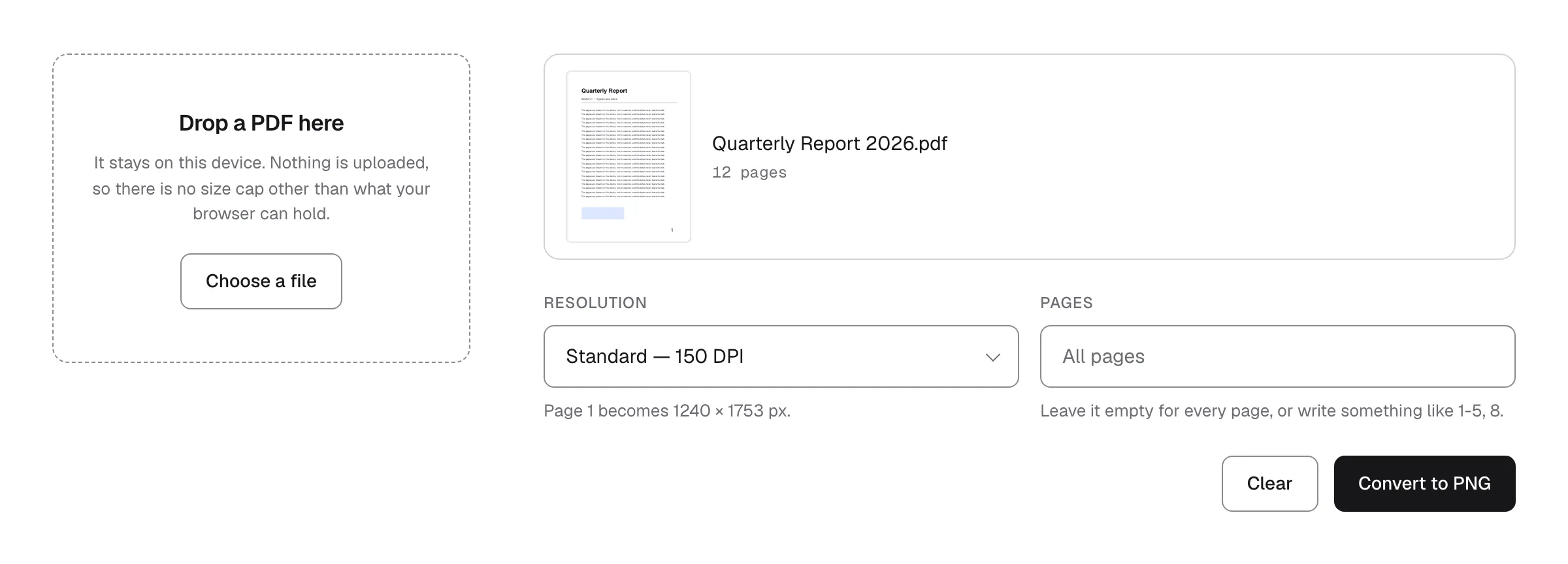
Drop a PDF here
It stays on this device. Nothing is uploaded, so there is no size cap other than what your browser can hold.
Leave it empty for every page, or write something like 1-5, 8.
Getting a picture of a PDF page is one of those jobs that looks trivial until you try it. Screenshotting loses half the resolution, the print dialog wants a printer, and the sites that offer to do it properly ask you to hand over the document first. For a contract, an invoice, or a scan of something with your address on it, that is a strange trade for what amounts to redrawing a page you already have.
The tab above redraws it on your device. The browser opens the file, paints each page you asked for onto a canvas at the resolution you picked, and hands the images back from the same tab. Nothing is uploaded, so there is nothing to delete afterwards. The quickest way to check that is to open your browser’s network panel while you convert: the pages go nowhere.
How it works
- Drop a PDF onto the box, or press Choose a file. Its first page and page count show up straight away, so you can see you picked the right document.
- Pick a resolution, and a page range if you do not want all of them. The line under the resolution tells you how many pixels page one will come out at.
- Press Convert to PNG. One page arrives as a PNG. Several arrive as a single zip, because browsers block a download that fires again and again.
Features
- The file stays on your device. There is no upload step and no server to send it to. That is the whole reason this exists, and it is the one thing you can check for yourself in the network panel.
- You choose the resolution. 96 DPI for something you will look at on a screen, 150 for a general-purpose image, 300 when it has to survive being printed. A PDF page has no pixels of its own until someone picks a number, and here that someone is you.
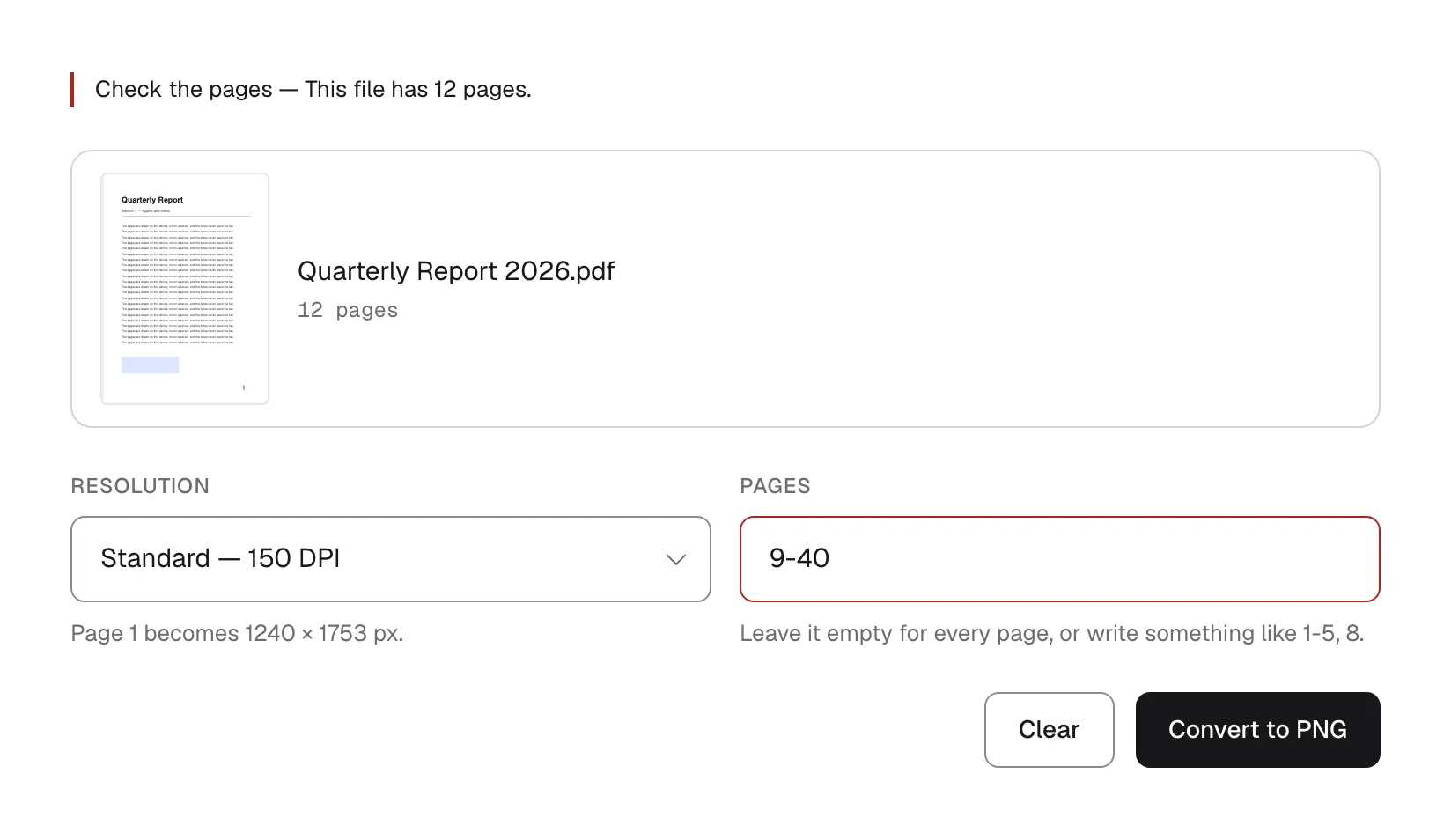
- You choose the pages. Leave the box empty for the whole document, or write
1-5, 8. On a 300-page report, that is the difference between three images and three hundred. A range that runs past the last page is refused on the spot, with the page count, rather than quietly handing back fewer images than you asked for. - Several pages come back as one zip. The images are stored rather than squeezed, since a PNG is already compressed, so unpacking is instant and nothing is re-encoded on the way in.
- Page numbers are padded. Page 7 of a 296-page file is named
-007, so the images stay in reading order in any folder that sorts by name. - A page that will not draw gets named. A damaged page is reported by number and the rest of the document still comes through, rather than the whole run failing.
FAQ
Does it cost anything? No, and there is no account to make. That is how it stands today rather than a promise about next year. If that ever changes, this page says so before it does.
Is the file really not uploaded? Really. Open your browser’s network panel while you convert and watch: no request carries your pages. The site around the tool counts page views with a cookieless analytics tool, and this page adds one number to that — when a conversion finishes, it records how many pages came out and at which resolution. Names and contents are never part of it, and the privacy notice says what the rest involves.
Why PNG rather than JPEG? PNG keeps every pixel exactly as it was drawn, which matters for the kind of page that is mostly text, lines and tables. JPEG would blur the edges of letters to save space. If the page is a photograph, a JPEG would be smaller, and that is a fair reason to want one — this tool does not do it yet.
How large a PDF can it handle? There is no limit set here, but there is one in your browser: the images are held in memory until the zip is written. A few hundred pages at 300 DPI can be more than a tab can hold. If a run comes back short, convert a range at a time or drop to a lower resolution.
Can it open a password-protected PDF? Not one that needs a password to view. Open it in your usual PDF viewer, save a copy without the password, and use that. A file that only restricts printing or copying opens here normally.
What about the other direction, joining, or dropping pages? Going the other way is its own page: the Image to PDF Converter turns photos and screenshots back into a PDF on your device, so a set exported here can be put together again there. If you want to join several PDFs into one, the PDF Merger runs in the browser the same way this does. If the trouble is the document rather than the format — a cover you do not want, a page scanned sideways — the PDF Page Organizer fixes that first, and the file it saves converts here.