PDF Page Organizer
Delete, rotate, reorder and extract pages from one PDF. The file is rewritten in the tab in front of you, so nothing is uploaded.
Editor
Drop a PDF here
It stays on this device. Nothing is uploaded. Dropping another file starts over.
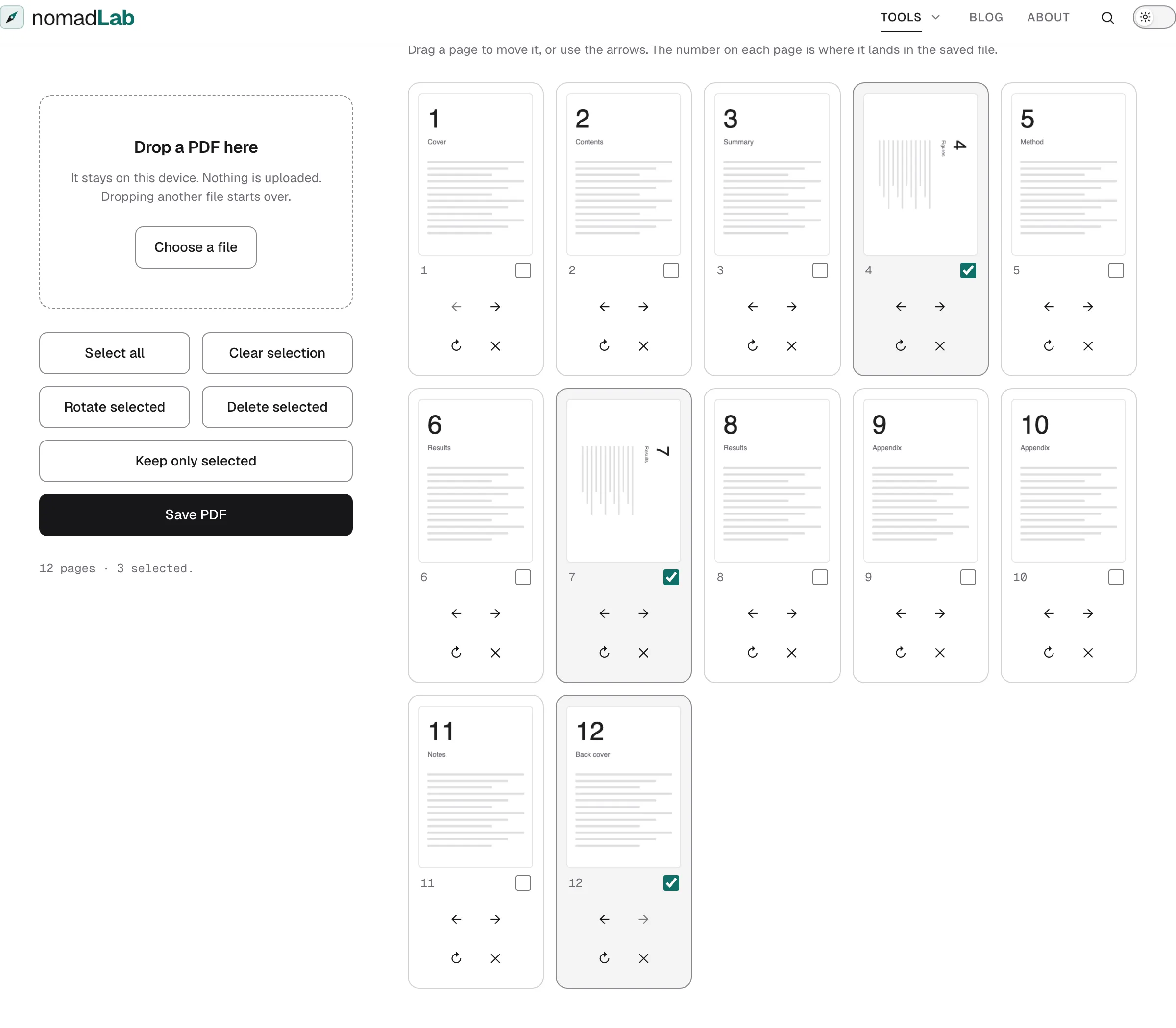
Drag a page to move it, or use the arrows. The number on each page is where it lands in the saved file.
A scan comes back with the cover page you did not want, three sheets sideways, and page 12 where page 2 should be. Fixing that usually means uploading the whole document to a stranger’s server, which is an odd trade for a contract, a payslip, or a passport scan — the pages you least want to hand over are the ones that need the most tidying.
The tab above lays every page of one file out as a picture. You pick the ones you want gone, turn the ones lying on their side, drag any of them into a different position, and save. The reading and the rewriting both happen on your device, so there is nothing to upload and nothing to delete afterwards. The quickest way to check that is to open your browser’s network panel and watch it while you work: the pages go nowhere.
How it works
- Drop a PDF onto the box, or press Choose a file. Every page turns up as a tile, and the number on each tile is where that page will land in the saved file.
- Tick the pages you want to act on and use the buttons — turn them, delete them, or keep only those and drop the rest. Single pages have their own buttons, and you can drag a tile or use the arrows to move it.
- Press Save PDF. The rewritten document arrives in your downloads named after the file you started with.
Features
- The file stays on your device. There is no upload step and no server to send it to. That is the whole reason this exists, and it is the one thing you can check for yourself in the network panel.
- You act on pages you can see. Pages have no names, so a list of numbers is no help. Every tile shows the page itself, drawn on your device like everything else here.
- Rotation is per page. Turning three sideways scans does not touch the other hundred, and a page that was already rotated in the original keeps that rotation with yours added on top.
- Pulling a range out is one button. Select the pages you want, press Keep only selected, and the rest leave the grid. That is the usual reason people go looking for a tool that splits a PDF.
- Long documents do not stall the tab. Only the pages on screen are drawn, and their pictures are released once you scroll past. A few hundred pages behave the same as a few.
- The original is never touched. Everything happens to a copy in memory, so if an edit goes wrong you drop the same file in again and start from the beginning.
- The saved file carries no trace of the tool or the original. It is written without a producer name or a creation date, so it does not record when or where it was made — and the title, author and producer of the file you started from do not come across either.
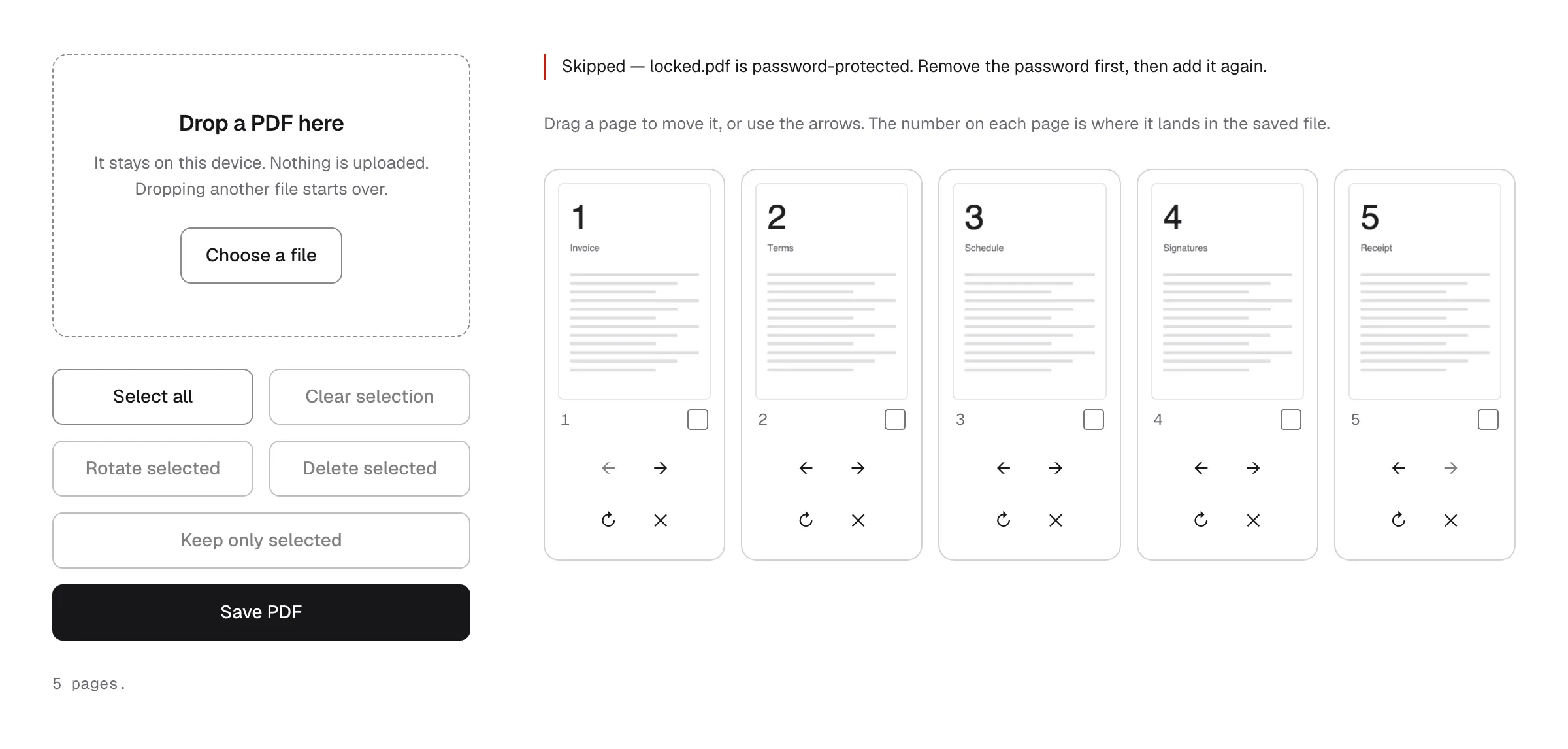
- A file it cannot open is named. A damaged file, or one that is locked with a password, is turned away by name instead of quietly doing nothing — and whatever you had already laid out stays exactly where it was.
FAQ
Does it cost anything? No, and there is no account to make. That is how it stands today rather than a promise about next year. If that ever changes, this page says so before it does.
Is the file really not uploaded? Really. Open your browser’s network panel while you work and watch: no request carries your pages. The site around the tool counts page views with a cookieless analytics tool, and this page adds one number to that — when a save finishes, it records how many pages went in and how many came out. Names and contents are never part of it, and the privacy notice says what the rest involves.
Can I work on more than one file at a time? Not here. This tool takes one file and gives one back. If you need to bring several documents together first, the PDF Merger joins them on your device the same way, and the joined file can come straight back here to have its extra covers taken out.
Can I get the pages as images instead? Not from here — what this tool writes is a PDF. The PDF to PNG Converter draws pages as images on your device the same way, and it takes a page range of its own. If you want images of a tidied document rather than the original, save the file here first and convert that one. Going the other way, the Image to PDF Converter builds a PDF out of photos or screenshots.
What happens to bookmarks and form fields? Page content, links, and annotations come across. A table of contents and interactive form fields do not, because those belong to the document rather than to the page, and every page here is copied into a brand-new document. A value someone typed into a form stays visible where it was, but it stops being editable.
Can it open a password-protected PDF? No. A locked file is encrypted, and without the password there is nothing to copy. Open it in your usual PDF viewer, save a copy without the password, and use that one instead.