Image to PDF Converter
Turn photos and screenshots into one PDF. The pages are built in the tab in front of you, so nothing is uploaded.
Converter
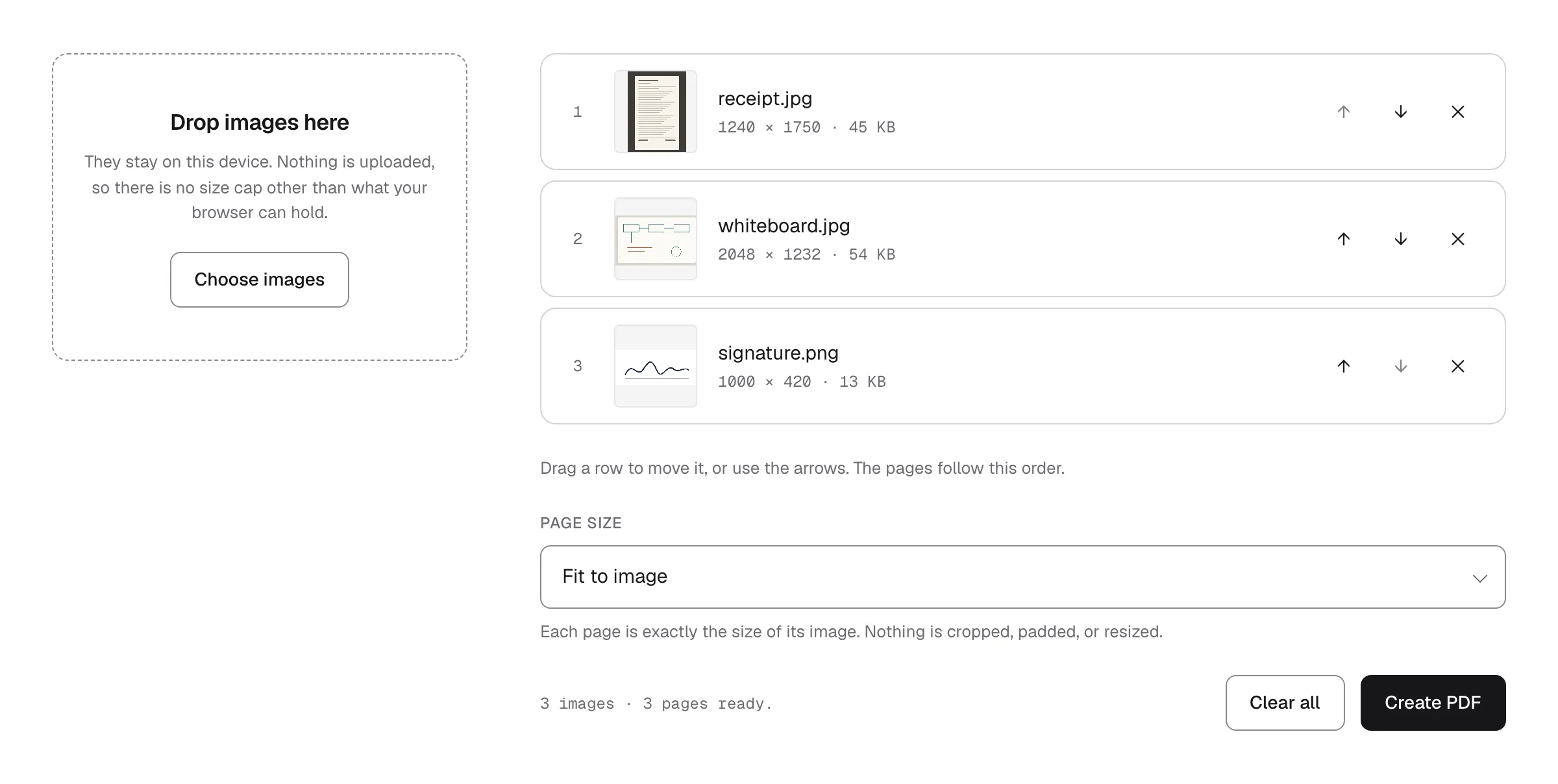
Drop images here
They stay on this device. Nothing is uploaded, so there is no size cap other than what your browser can hold.
Drag a row to move it, or use the arrows. The pages follow this order.
Someone asks for a receipt, a signed form, or a passport page as a PDF, and what you have is three photos on your phone. The usual fix is to hand those photos to a stranger’s server, wait for a queue, download the result, and then go looking for the sentence that says how long the copies are kept.
The tab above does that on your device. The browser reads each image, writes it onto a page in a new document in memory, and hands you the result from the same tab. Nothing is uploaded, so there is nothing to delete afterwards. The quickest way to check that claim is to open your browser’s network panel and watch it while you build the file: the photos go nowhere.
How it works
- Drop your images onto the box, or press Choose images. Each one is read on the spot, so its thumbnail and pixel size show up before you commit to anything.
- Put them in the order you want and pick a page size. Drag a row, or use the arrows. The number on the left is the page that image becomes.
- Press Create PDF. The finished file arrives in your downloads.
Features
- The images stay on your device. There is no upload step and no server to send them to. That is the whole reason this exists, and it is the one thing you can check for yourself in the network panel.
- JPEG and PNG go in untouched. The original bytes are copied straight into the page rather than re-compressed, so a photo comes out exactly as sharp as it went in and the file stays about the size you expect.
- Photos come out the right way up. A phone stores its pictures sideways with a note to rotate them, and PDF readers ignore that note. Anything carrying one is straightened before it goes in, so the page matches the thumbnail you were shown.
- A page size that is an actual choice. Fit to image gives each page the exact shape of its image, so nothing is cropped or padded. A4 and US Letter centre each image on paper with a half-inch margin and turn the page sideways for a wide shot.
- Order you can see. The numbers down the left side are the page numbers of the finished file. Drag a row to move it, or use the arrows if you are on a phone or a keyboard.
- The PDF carries no trace of the tool or the camera. It is written without a producer name or a creation date, so it does not record when or where it was made.
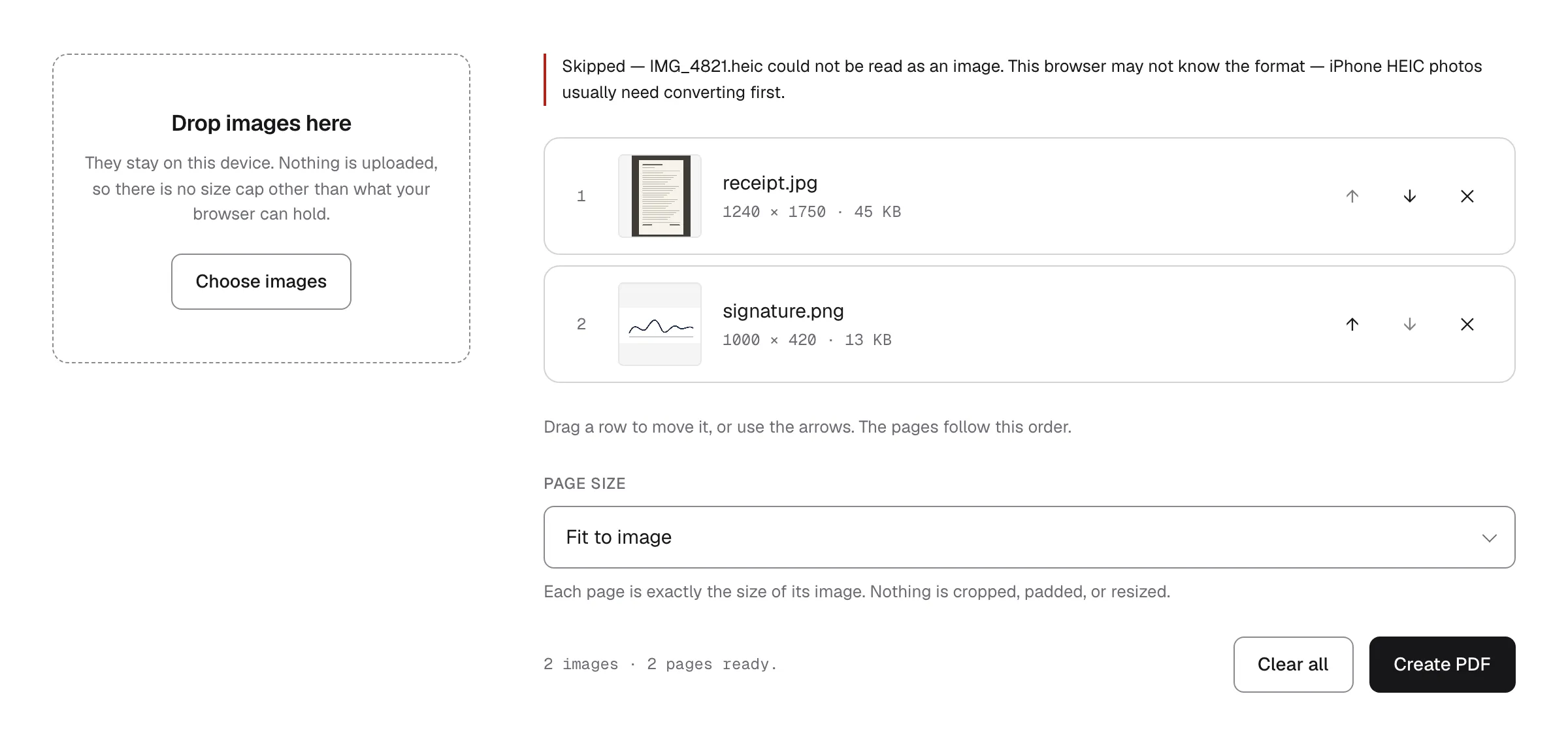
- Files it cannot read get named. An image in a format your browser does not know is skipped by name rather than quietly dropped, so a six-page result is never missing a page you thought you had added.
FAQ
Does it cost anything? No, and there is no account to make. That is how it stands today rather than a promise about next year. If that ever changes, this page says so before it does.
Are the images really not uploaded? Really. Open your browser’s network panel while you build the file and watch: no request carries your photos. The site around the tool counts page views with a cookieless analytics tool, and this page adds one number to that — when a PDF is built, it records how many images went into it and which page size was picked. Names and contents are never part of it, and the privacy notice says what the rest involves.
Which formats can I use? JPEG and PNG are copied in as they are. WebP, AVIF, GIF and BMP work too, but they are re-saved as PNG first because those are the only two formats a PDF can hold. HEIC photos from an iPhone usually fail outside Safari, since most browsers cannot decode them — export or convert them to JPEG first.
Does anything lose quality? Not for an ordinary JPEG or PNG; those bytes are never re-compressed. Two cases do get re-saved once: a photo carrying a rotation flag, which has to be redrawn to bake the rotation in, and any format a PDF cannot hold. Very large images are also scaled down when they exceed what a browser can draw in one go, and the list says so when it happens.
Can I go the other way, or work on a PDF I already have? Yes, on the other pages. PDF to PNG turns the pages of a PDF back into images. PDF Merger joins this file to other PDFs, and the PDF Page Organizer deletes, rotates or reorders its pages — all of them on your device the same way.