PDF Merger
Join several PDFs into one file. The pages are copied in the tab in front of you, so nothing is uploaded.
Merger
Drop PDF files here
They stay on this device. Nothing is uploaded, so there is no size cap other than what your browser can hold.
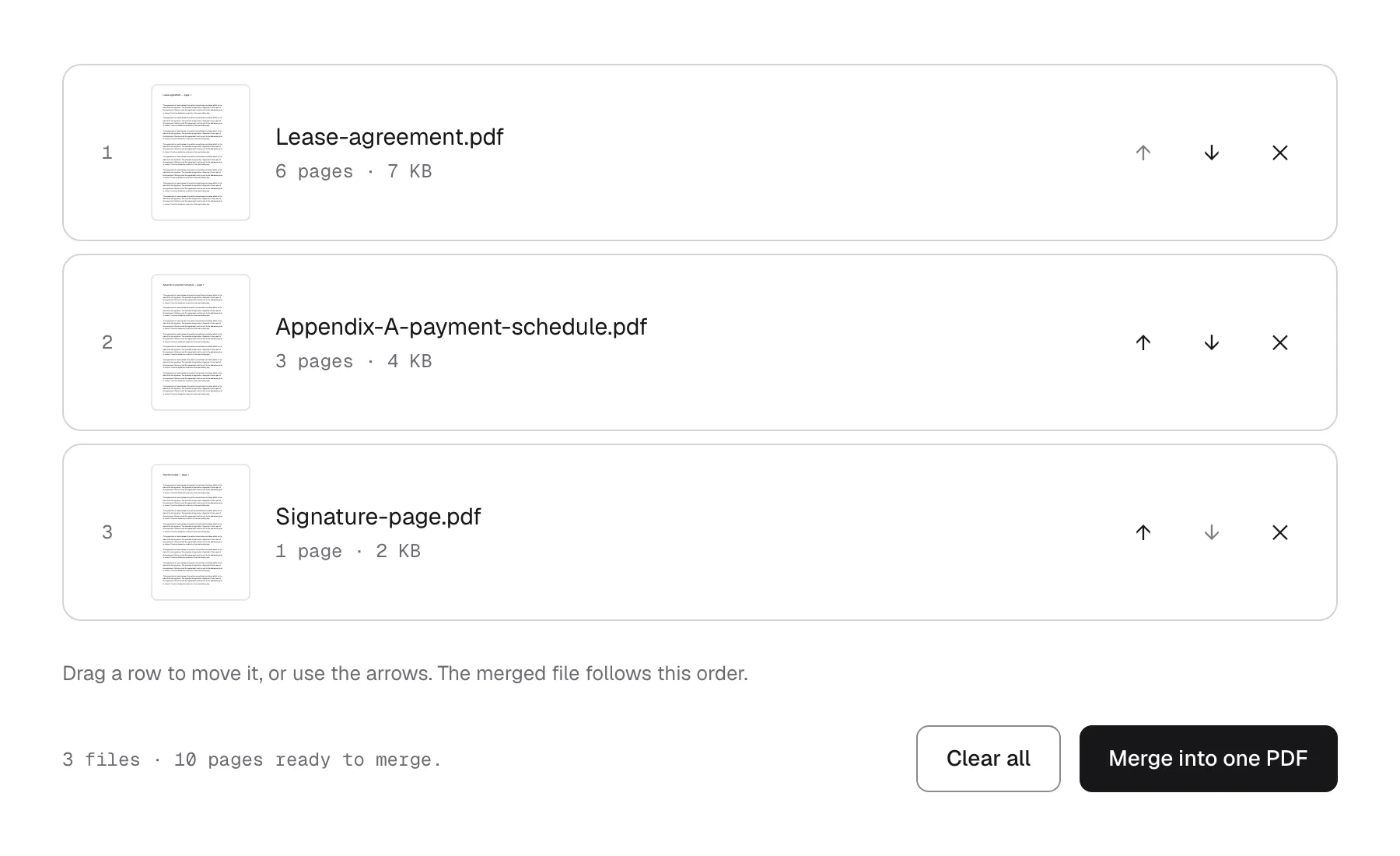
Drag a row to move it, or use the arrows. The merged file follows this order.
The usual way to merge two PDFs is to hand them to a stranger’s server, wait for a queue, download the result, and then go looking for the sentence that says how long the copies are kept. For a signed contract, a bank statement, or a scan of your passport, that is a lot to give away for a job that is mostly copying pages from one file into another.
The tab above does that copying on your device. The browser reads each file, writes the pages into a new document in memory, and hands you the result from the same tab. Nothing is uploaded, so there is nothing to delete afterwards. The quickest way to check that claim is to open your browser’s network panel and watch it while you merge: the pages go nowhere.
How it works
- Drop your PDFs onto the box, or press Choose files. Each one is read on the spot, so its first page and page count show up before you commit to anything.
- Put them in the order you want. Drag a row, or use the arrows. The number on the left is where that file lands in the finished document.
- Press Merge into one PDF. The joined file arrives in your downloads as
merged.pdf.
Features
- The files stay on your device. There is no upload step and no server to send them to. That is the whole reason this exists, and it is the one thing you can check for yourself in the network panel.
- You can see what you are merging. Every row shows the first page of that file,
which is the only way to tell
17128182_25062026.pdfapart from the other scan next to it. The picture is drawn on your device like everything else here. - Page counts before you merge. Every row shows how many pages it brings, and the line under the list adds them up. You find out the total before you open the result, not after.
- Order you can see. The numbers down the left side are the order of the merged file. Drag a row to move it, or use the arrows if you are on a phone or a keyboard.
- The merged file carries no trace of the tool or the originals. It is written without a producer name or a creation date, so it does not record when or where it was made — and the title, author and producer of the files you started from do not come across either.
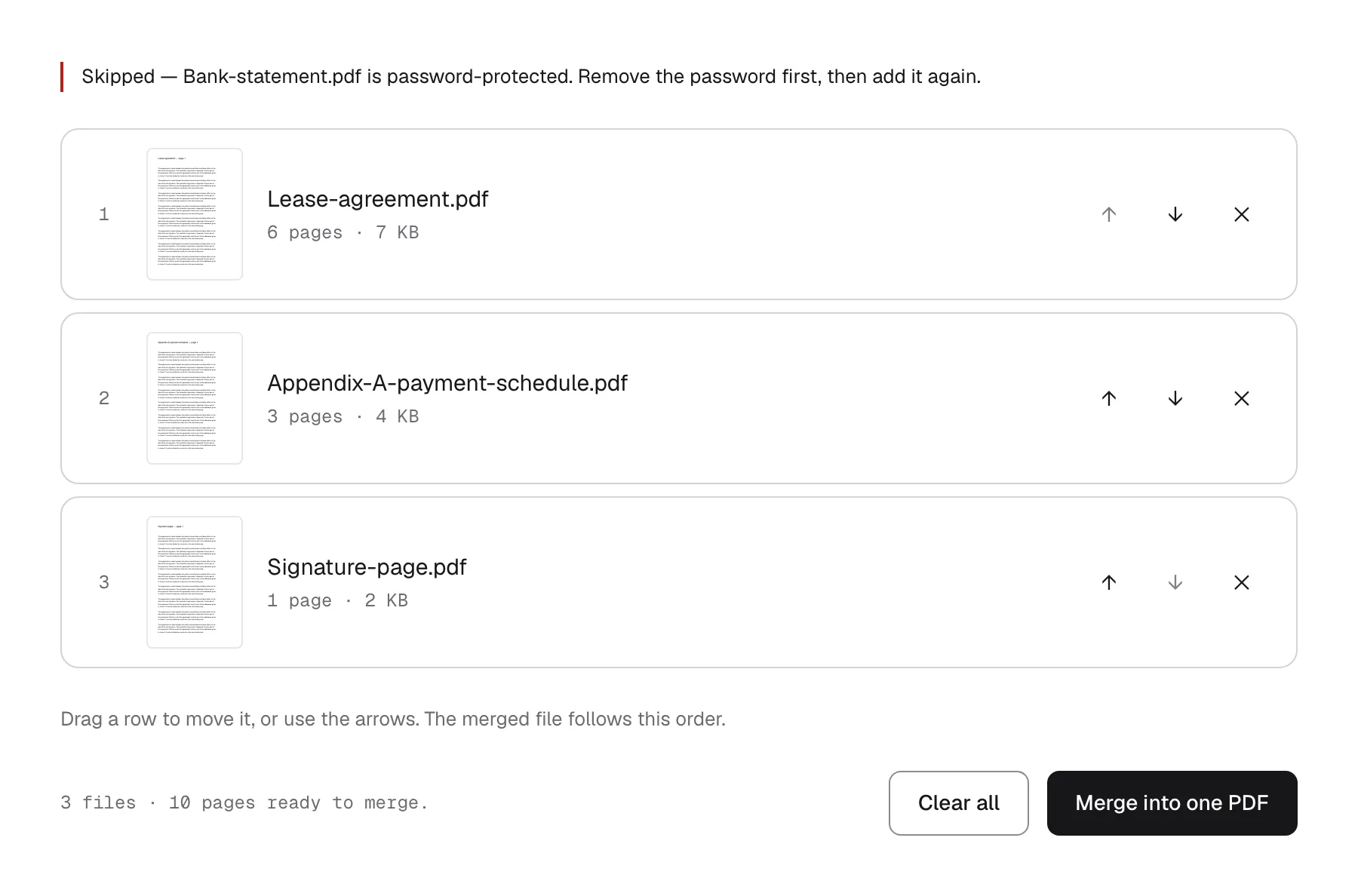
- Broken files get named. A damaged file or one that is not really a PDF is skipped by name rather than quietly dropped, so a 40-page result is never missing pages you thought you had added.
FAQ
Does it cost anything? No, and there is no account to make. That is how it stands today rather than a promise about next year. If that ever changes, this page says so before it does.
Are the files really not uploaded? Really. Open your browser’s network panel while you merge and watch: no request carries your pages. The site around the tool counts page views with a cookieless analytics tool, and this page adds one number to that — when a merge finishes, it records how many files and how many pages went into it. Names and contents are never part of it, and the privacy notice says what the rest involves.
Can I drop a page from one of the files first? Not here — this tool works a file at a time, and the pages come across whole. The PDF Page Organizer takes one file and lets you delete, rotate or reorder its pages on your device the same way. Either order works: take the cover out first, or merge and then take it out of the joined file.
What if what I have is photos rather than PDFs? The Image to PDF Converter turns a set of photos or screenshots into a PDF on your device, one page per image. Bring that file back here to join it to the rest.
What happens to bookmarks and form fields? Page content, links, and annotations come across. A table of contents and interactive form fields do not, because those belong to the document rather than to the page, and every page here is copied into a brand-new document. A value someone typed into a form stays visible where it was, but it stops being editable.
Can it open a password-protected PDF? No. A locked file is encrypted, and without the password there is nothing to copy. Open it in your usual PDF viewer, save a copy without the password, and add that one instead.